Category: Apps/Accessories

  • New App: The Sounding Out Machine

    The Sounding Out Machine

    I remember sitting with a student some years ago, a student who has dyslexia. I was coaching her in using her index card to figure out a difficult word. She grew increasingly frustrated, and finally told me, “Mr. Cort, I’m trying to use my card, but when I look at the page it just looks like a sea of words!” That’s when I decided to make an app to help her, an app that became “The Sounding Out Machine – Assistive Reading Device.”

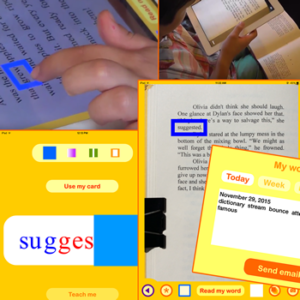
    My first goal was to help her get through the “sea of words” so she could focus on her challenging word. I made an app that allows students to snap a photo of their book page. Then I created a “word window” – a box that readers can place around a difficult word. Once boxed, the app isolates and enlarges the difficult word so a student can see it clearly and work on sounding it out, without the distraction of hundreds of other words.

    My next goal was to create a “second teacher” – a digital guide to model how to chunk the difficult word into syllables and sound it out. In place of an index card, which was difficult for some students to manipulate, I created a digital card. This digital card mimics an index card by sliding across a word, phonogram by phonogram, blending the sounds together to build each syllable, using Blended Phonics. Later, I added a Synthetic Phonics option as well. Students can watch the app model how to chunk and sound out their word as many times as they like – and then students can practice on their own, with their own digital word card.

    The result of these efforts was “The Sounding Out Machine” – the first Assistive Reading Device (or ARD). The ARD performs a role analogous to Augmentative Alternative Communication devices. In the same way AACs turn a child’s iPad into a communication device, the ARD turns the iPad into a reading assistant. It supports children reading paper books or eBooks in the classroom or at home.

    For children with reading difficulties or learning disabilities like dyslexia, the device helps isolate and focus on a challenging word – when a book page can seem like a “sea of words.” And for all children, the device models how to chunk difficult words into syllables and sound them out, just as a teacher would.

    Take a look at how the app works:

    Download “The Sounding Out Machine” in the Apple iTunes Store: https://geo.itunes.apple.com/us/app/sounding-out-machine-assistive/id1063090009?mt=8

    by David Cort
    FizzBrain.com
    [email protected]
    www.facebook.com/fizzbrainapps
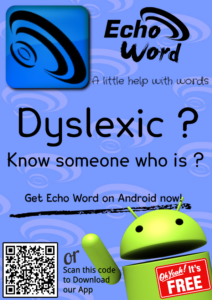
  • New app “Echo Word” reads text back to you

    Echo Word

    Echo Word was made by someone with dyslexia to help with day to day life, and would like to help all dyslexic and non dyslexic alike, in a world with words.

    Hello, my name is Paul and I struggled with dyslexia for years, so I made this app for myself, but had friends tell me I should send it out into the world to help others!

    So with a little tidy up, to make it look nice for you guys and a couple of tweaks from feedback I got, here it is! Hope it helps many of you out there.

    This app helps me most days in my work life. It’s great for helping me spell the words I want to use and also pasting my emails into so I don’t need to read them myself, where reading them takes me longer than most people to do.

    Echo Word is an app to help people of all ages with words. This app is not a spell checker, but instead, uses your own voice and a speak back function to display the word you may be after, also it can read words that you copy into the text box.

    Try typing a word or whole sentences you can’t read off a letter, sign or poster, then have your device read it back to you!

    Why not try copying and pasting an entire E-mail or text from a website into Echo Word and have it read to you for ease!

    It works with whatever language your device is set too, so if you have family, friends or even a pen pal somewhere else in the world, let them know about it. If you’re a teacher, show the children in your class, or the whole school! There may be a child struggling in silence that you can help. And don’t forget the parents, who find it hard to help their children with homework, if you have a newsletter, put it in there too! The more people we can help the better.

    This app is only on Android devices and it’s FREE! Just go to the Google Play Store and search for Echo Word or click this link:
    https://play.google.com/store/apps/details?id=appinventor.ai_paul_felton82.EchoWord

  • CBeebies Star Launches New App To Help Children Learn to Read: Moftail and the Colour Thief

    Moftail and the Colour Thief
    Moftail and the Colour Thief

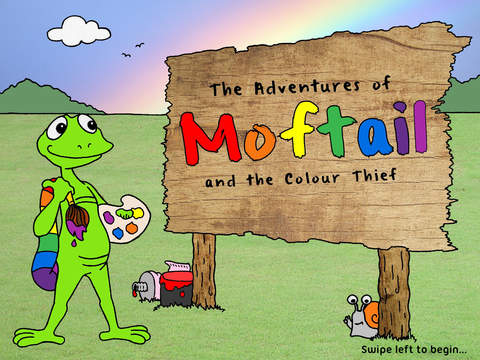
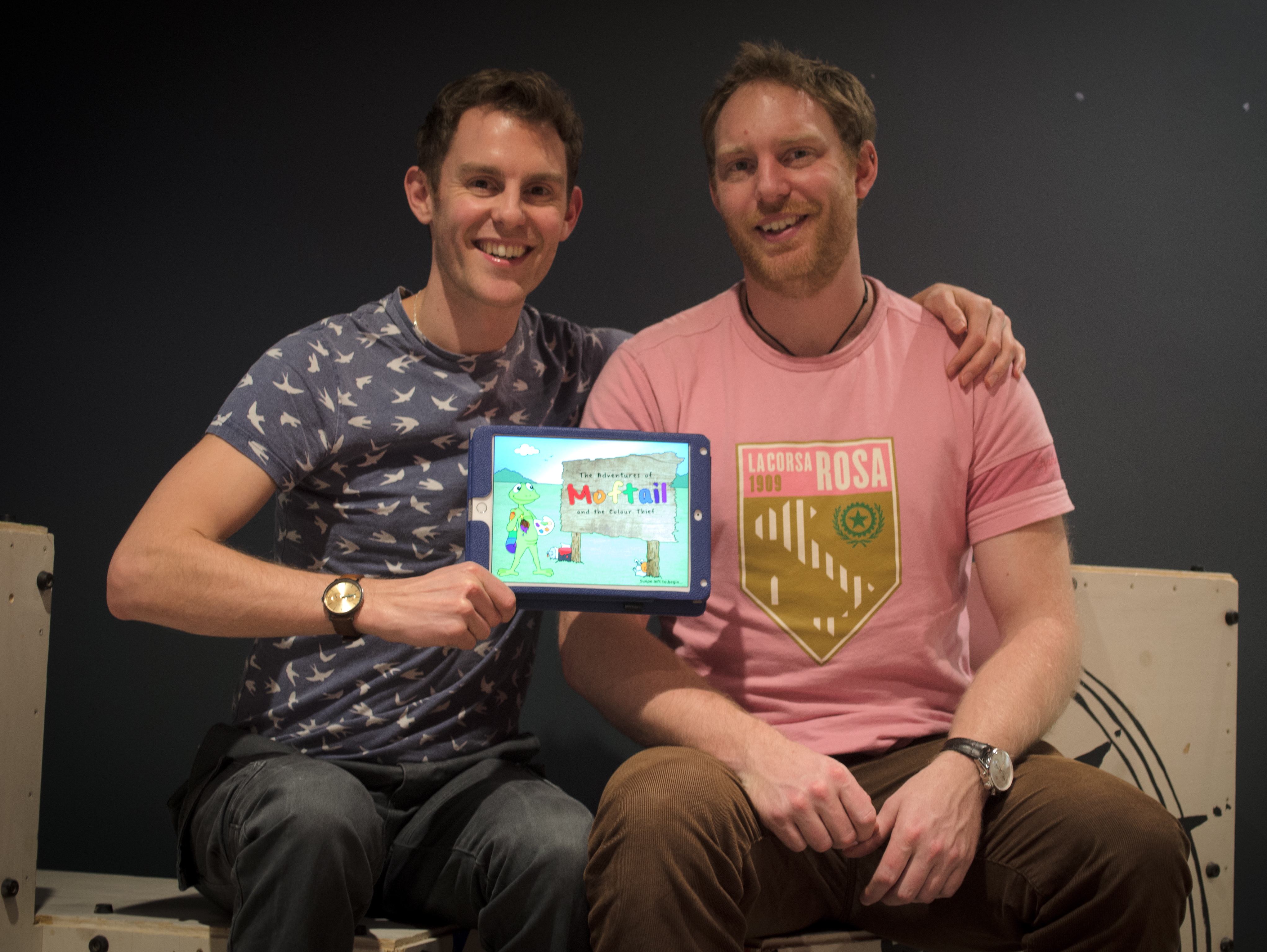
    Cbeebies Joseph Elliott – who plays Cook in the Bafta-nominated show Swashbuckle – has written a children’s story designed to help children who are learning to read.

    The app is a joint venture between Joseph and his brother, Tom Elliott, who is a software engineer at Facebook. Moftail and the Colour Thief tells the tale of a hapless gecko called Moftail who wakes up one morning to discover that all of the colours in the world have disappeared. An epic 65-page adventure, neatly divided into seven exciting chapters. It is written entirely in rhyming couplets, which research shows helps aid children’s learning.

    Moftail and the Colour Thief
    Moftail and the Colour Thief

    The story has two different modes: Full Story Mode for adults and older children to read; turn the iPad 180° and the story changes into Short Story Mode where younger or less confident children can try reading the story themselves, with added phonetic support.

    Prior to working at Cbeebies, Joseph worked as a teaching assistant in a special needs school for over four years. He has always been passionate about children and education and through setting up Sneaky Snail Publications, wanted to explore the ways in which technology could be used to enhance a child’s learning.

    FIND OUT MORE:
    Website: www.sneaky-snail.com
    App Store: https://itunes.apple.com/GB/app/id946225048?mt=8

  • Math Shake: An Engaging, Playful App for Solving Word Problems

    Math Shake is an engaging, playful app that helps students learn to effectively solve word problems.
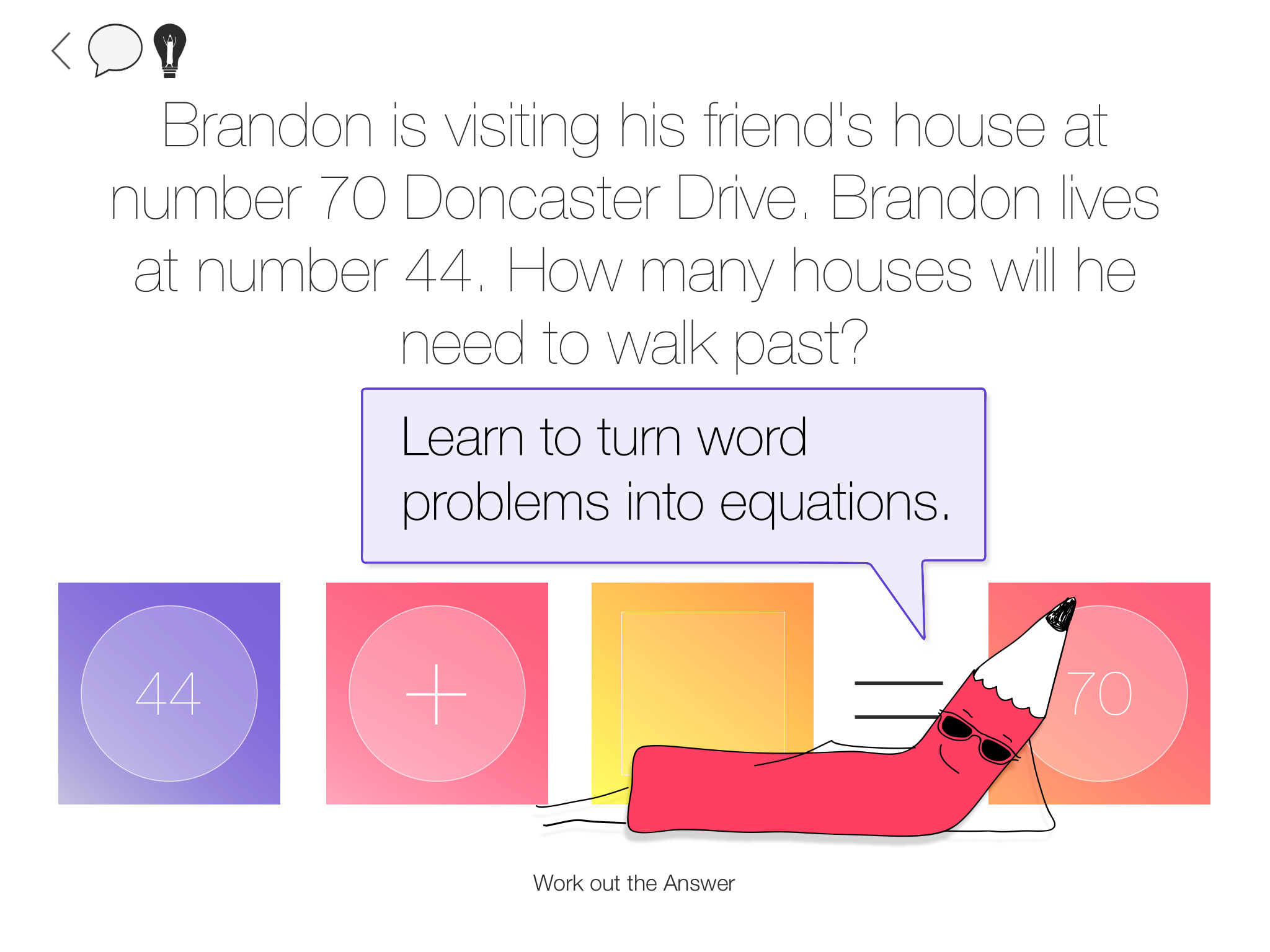
    Math Shake contains thousands of unique questions which students turn into an equation by looking for key words and clues in the problem.

    Math Shake was created by elementary teachers with years of experience in helping students with dyslexia and dyspraxia succeed. It is designed to support and extend students of all abilities. Math Shake can read questions out loud to students so that they can focus on the math and not get frustrated trying to decode word problems. Math Shake’s colorful hints and clues will help scaffold learners, while making students smile and enjoy themselves.

    Once students have uncovered the equation, they have all their favourite learning tools such as number lines, tens frames, fraction pieces and counters at their fingertips to work our their answer.

    Math Shake for Schools

    Perhaps the most impacting part of this app for learners with dyslexia or dyspraxia is the record function. As learners solve the equation they can make a video showing how they worked out the problem. These can be saved to an iPad’s camera roll, uploaded to a student’s blog or sent wirelessly to their teacher.

    Math Shake is developed by expert teachers and math specialists to engage students aged 6-14. It was tested and developed with students with dyslexia and dyspraxia and has had glowing reviews.

    Download Math Shake for FREE today and get learning!

    Find out more at http://www.topstoreyapps.com or download Math Shake today from the iPad App Store: https://itunes.apple.com/us/app/math-shake/id900783507?mt=8&uo=4&at=11l6TY&ct=tsaweb

  • Visual Learning for Life: Worksheets and App addressing various Visual Perceptual Skills

    Visual Learning for Life Logo

    Visual Learning for Life provides parents, teachers and professionals with unique, professionally designed worksheets that help empower children who struggle with reading, spelling, handwriting, maths and comprehension due to weak visual perceptual skills. The extensive array of over 5000 worksheets have been devised to support children from 4 to 18 years. The worksheets are available on CD or as a file that can be downloaded upon purchase.

    More information on our worksheets can be found at: www.visuallearningforlife.com

    Spatial Skills App:

    Visual Learning for Life

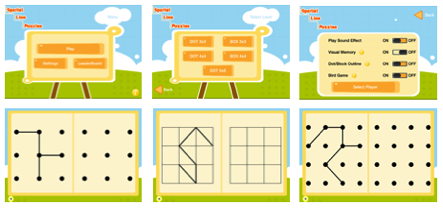
    Visual Learning for Life has also developed an app called Spatial Line Puzzles, which addresses spatial skills and visual motor integration skills. The child has to copy the lines of each puzzle to the empty box by joining the same dots/blocks. The puzzles are graded from easy to more challenging in 5 different levels. There are 40 puzzles in each level. After completing 5 puzzles, the child is rewarded with playing a short, fun bird game, which further reinforces spatial concepts. Visual memory skills can also be targeted. If this setting is on, the puzzle will disappear after the selected time period. The first 10 puzzles are FREE. The remaining puzzles can be accessed through an in-app purchase.

    You can download the app at:
    iTunes/App Store (for iPad)
    Google Play Store (for Android Devices)

  • Students Helping Students – “Dyslexi-type” is a finalist in Seattle Social Venture Partners’ “Fast Pitch”

    SVP Seattle Fast Pitch

    Inspired by the academic challenges his cousin faced in school, Eli W. of Seattle, Washington set out to create a learn-to-type software program built from the ground up for kids with Dyslexia. “I learned that when kids with Dyslexia use a keyboard instead of handwriting, they can focus on what they want to say, not on the mechanics of writing it down,” Eli said, “This program will be built just for them.” Two years later, helped by schoolmate Xander F. and advisors from local business and Dyslexic communities, “Dyslexi-type” is now a working prototype and a finalist in Seattle Social Venture Partners’ “Fast Pitch,” a social innovation contest. The sixteen-year-old will pitch his idea live on stage to 700+ people on October 28th, 2014 at Benaroya Hall in Seattle – wish him luck!

    http://www.socialventurepartners.org/seattle/news/2014-svp-fast-pitch-finalists/

  • Put Your Best Text Forward Online – Grammarly.com

    Grammarly

    How many emails did you send today? What about Facebook updates or tweets?

    Online communication is more important than ever. According to research by the email management company AWeber, over 90 percent of teens today prefer to communicate via email, text, and Facebook. Texting and social networking are increasingly our primary modes of talking to each other; in fact, a 2012 study found that 40 percent of Americans would rather text than call, while 30 percent prefer to connect with friends online instead of face-to-face.

    Unfortunately, typical spelling and grammar checker tools aren’t available to you where you write most—online. Here are 5 tips for helping people with dyslexia to write better on the Web.

    1) Create a short proofreading checklist for yourself. What kinds of errors do you most want to find and fix? Typically, people struggle with a few areas of grammar and spelling more than others. Maybe homonyms (they’re/their/there) trip you up, or maybe you have trouble remembering when to use a comma. Understanding your strengths and weaknesses as a writer is the first step to improving your prose.

    2) Look for one kind of error at a time. Trying to fix everything all at once is a great way…to make yourself feel overwhelmed and frustrated. Instead of proofreading for all errors at once, break the task down into more manageable chunks. Start with end punctuation first (periods, exclamation points, and question marks), then move on to other punctuation (commas, semicolons, apostrophes, etc.), and finally tackle spelling. Pay closest attention to the problem areas you identified in step one.

    3) Read aloud (or use text-to-speech to read aloud) to locate misspelled or missing words. Reading your emails or tweets out loud may make you feel a little sill, but according to the Writing Center at UNC-Chapel Hill, it’s one of the best ways to catch errors that you might otherwise miss. “Most people have far more experience listening to and speaking English than they do reading and editing it on the printed page. When you read your draft out loud or listen to someone else read it, your brain gets the information in a new way, and you may notice things that you didn’t see before.” If you’d rather have someone else read your text, there are a number of free text-to-speech programs available such as Natural Reader.

    4) Step away and look again later. After you’ve proofread a piece of writing, take a break, step away, and then come back to it with fresh eyes. The longer the work, the more time you should take between passes. Shorter pieces of writing, such as tweets or status updates, may only require a coffee break, but important emails, blog posts, and other documents may need to rest overnight.

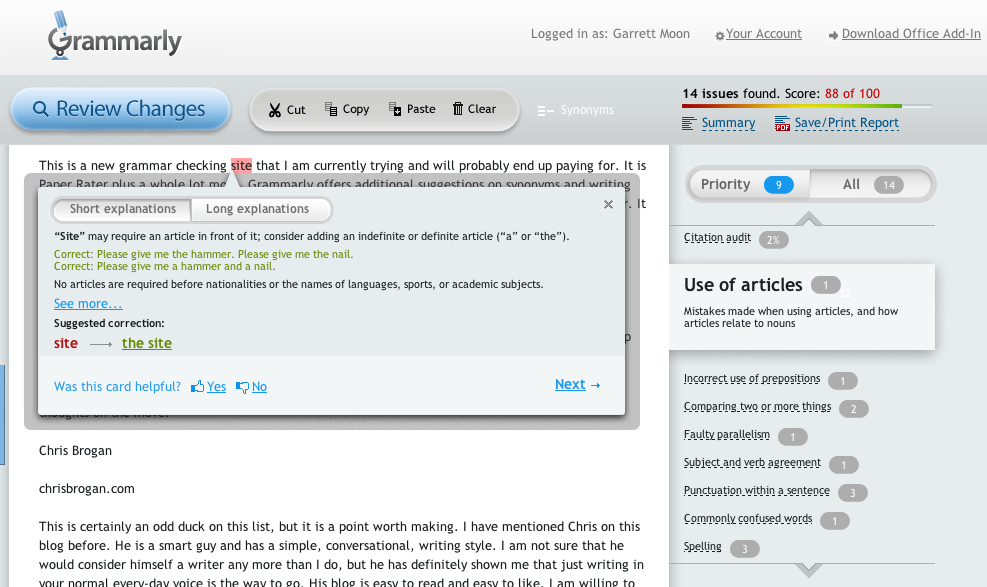
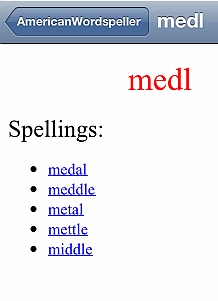
    5) Use online grammar checking tools. American Wordspeller is a phonetic dictionary that allows users to look up words based on how they sound, not how they’re spelled. Another great tool is Grammarly Lite, a free browser extension for Chrome, Firefox 4+ and Safari browsers that alerts you to potential grammar mistakes before you post or hit “send.” It also catches contextual spelling errors (typing “horse” when you meant “house,” for example) and has a built-in thesaurus for those times when the right word eludes you.

    Without non-verbal cues like tone of voice or facial expressions, text-based communications rely entirely on the quality of your writing. Put your best text forward!

    Blog Post provided by Grammarly.com

    Grammarly improves communication among the world’s 2+ billion native and non-native English writers. Our flagship product, the Grammarly® Editor, corrects contextual spelling mistakes, checks for more than 250 common grammar errors, enhances vocabulary usage, and provides citation suggestions. More than 4 million registered users worldwide trust Grammarly’s products, which are also licensed by more than 350 leading universities and corporations. Grammarly is a privately-held company with offices in San Francisco and Kiev.

  • New service can be trusted when it is important to get the grammar and spelling right in emails – eAngel.me

    Mistakes in spelling and punctuation in emails are forgiven every day. This is no problem if the message is about being late for dinner. It is different if the message is to persuade someone to sign a purchase order or grant a job interview. eAngel.me is a new online service for business or personal use which offers to proofread and correct email punctuation and grammar in any language. It is not a translation service and will not change the meaning of the text in any way. The corrections are made by humans and the service is available in all countries.

    Users of email know that the software on their computers, no matter how advanced, cannot catch all errors because it cannot automatically put the meanings of a word which may sound the same but be spelled differently in the proper context. Professionally qualified humans can do that; and this is the premise on which eAngel.me was founded. Those who may find this unique service valuable include global businesses which have teams of salesmen in different countries, students seeking jobs or admission to schools in different countries, people with Dyslexia, technology experts who paid more attention to the technology professor than the English teacher but still need to communicate well with non-techs, and anyone studying or writing in languages other than their mother tongue.

    eAngel.me has a free trial available so prospects can experience how the service works; and it supports any type of email and any type of browser. This comment from one customer illustrates its ability to save time: “Today my emails are much more professional. I can do more with my time because I don’t need to worry about reading the email over and over again before I send it”.

    For information on how eAngel.me works and for a free trial, go to eAngel.me.

  • American Wordspeller™ & Phonetic Dictionary

    American Wordspeller™ & Phonetic Dictionary

    Dyslexics are often recommended to use a dictionary for writing. However, this does not help them much since they often do not know how the words are written. So for example, a dyslexic child may want to write “queen” but thinks it is written “kween”. Searching under “k” won’t bring any results and more likely than not the child will give up. This is no longer necessary! Now dyslexics can use the American Wordspeller™ & Phonetic Dictionary. This dictionary finds words by how they sound. This is how it works:
    Type in 2-4 letters of your word by “how it sounds to you”. Spell it just how it SOUNDS to you. NO spelling RULES required. If you spell the first 2-3 letters wrong, good, this dictionary will find your word no matter how you spell it as long as the letters SOUND right to you. Over 65,000 common, everyday words excluding words which require capitalized letter at the beginning. There are no proper nouns in this dictionary such as people, places, things, times and events. The database would be too large.

    Remember, just type the first 2-4 letters that YOU THINK your word starts with into the search bar. If there are too many choices…add a 4th or 5th letter to narrow your search.

    FOUR RESOURCE TOOLS IN ONE

    1. Phonetic Wordspeller™ Cross-Reference is automatic. If your spelling sounds or is spelled similar to any other words…they will all be listed
    2. Dictionary with brief definitions
    3. Suffix Speller – root words along with all possible word endings completely spelled out for you!
    4. Prefixes listed – complete with definitions

    This app does not require internet connection! It is available for IOS and Android.

    More information: American Wordspeller™ & Phonetic Dictionary